Oklahoma Drivers Can Put Their License in Google Wallet Now. Keep the Plastic One Anyway
Google Wallet now supports Oklahoma driver’s licenses and state IDs on Android. Here’s how to add yours, where it works and where it doesn’t.

In this article
Oklahoma just joined the short list of states whose driver’s licenses and state IDs work in Google Wallet on Android. Google added support on Monday, October 5, making Oklahoma the 12th state on the list. Count Puerto Rico and Google Wallet now covers 13 jurisdictions.
The digital card even looks local, with an American bison and a scissor-tailed flycatcher on the design, Android Headlines reports. But before you leave your wallet at home, there is a catch, and it is a big one.
Where it works, and where it doesn’t
The digital ID is accepted at some TSA airport checkpoints. You don’t hand over your phone. You tap it to an NFC reader or show a QR code, then confirm the share with your face, fingerprint, PIN or password.
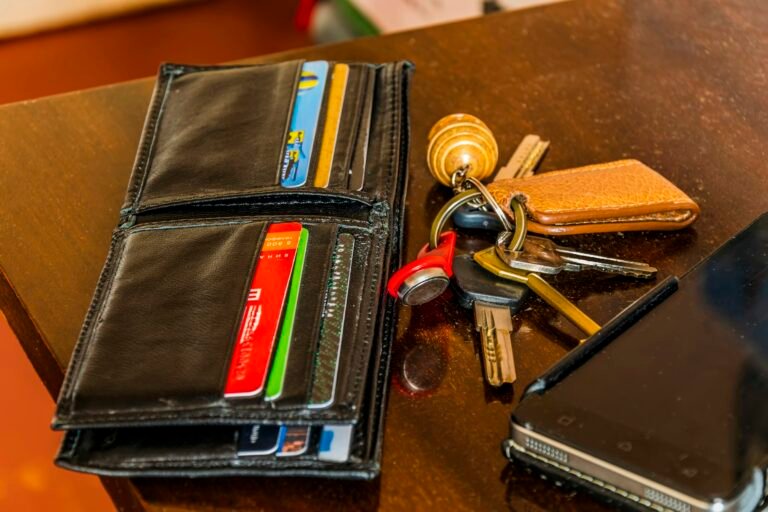
Here is the catch: it is a supplement, not a replacement. Oklahoma law still requires you to carry your physical card, and TSA tells travelers to “always carry a physical and acceptable form of ID.” A traffic stop, a bar, or a pharmacy counter may not have a reader, and many won’t.
Also check before you fly. TSA says more than 250 checkpoints accept mobile IDs, but its participating-states page didn’t list Oklahoma’s Google Wallet ID when we checked. Look it up on tsa.gov before you count on it at your airport.
How to add your Oklahoma ID to Google Wallet
Your phone needs Android 8 or newer, a screen lock, and Bluetooth and Nearby devices turned on. Then:
- Open Google Wallet and tap the + button near “View more.”
- Choose IDs & personal info, then Driver’s license or state ID.
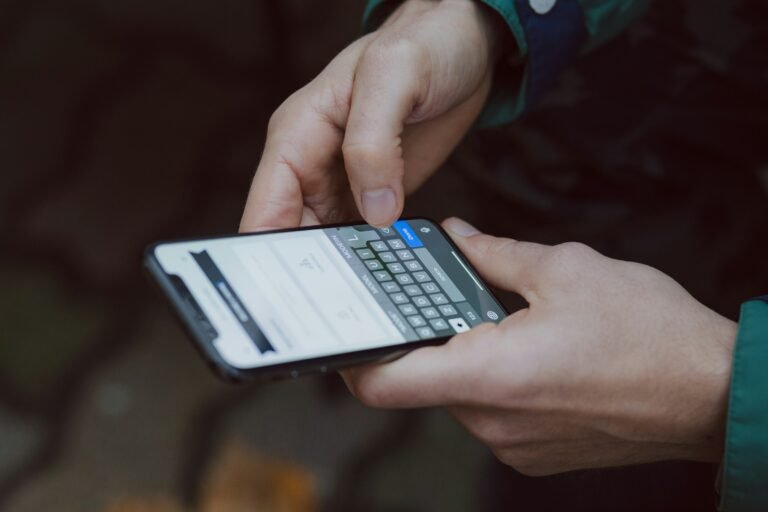
- Pick Oklahoma and photograph the front and back of your physical card.
- Record the short face-verification video. It goes to the state for review.
- Wait for approval. 9to5Google says that usually takes minutes.
Do this somewhere with good light and a plain background. The card scans are the step most likely to need a retake.
The privacy fine print
Google has made a few sensible choices here. The ID lives on one device only and doesn’t sync to the cloud, so a new phone means adding it again. If your phone is lost or stolen, you can delete the ID remotely from myaccount.google.com.
Sharing is selective, too. Because you never hand over an unlocked phone, the person checking your ID can’t scroll through your photos or messages while they look.
The other states on the list
Oklahoma joins Arizona, Arkansas, California, Colorado, Georgia, Iowa, Maryland, Montana, New Mexico, North Dakota and Ohio, plus Puerto Rico. That is real progress, but it still leaves most of the country waiting. If you live in a supported state, setting it up takes five minutes and makes airport security a little smoother.
Our advice: add it, use it at the TSA lanes that accept it, and keep the plastic card in your pocket. For now, the phone version is a convenience, not a substitute.
Sources: 9to5Google, Android Headlines, TSA. Photo by Reza Madani on Unsplash.

Sidharth
Hey there ! I am Sidharth Shankar, I am an editor at Android Captain. A computer science engineer with 7 years of experience in the technology field, I cover apps, Reviews, AI features, wearables and hands-on how-to guides for Android users.