The Google Home Widget Got a Battery Fix — Here’s How to Actually Set It Up

In this article
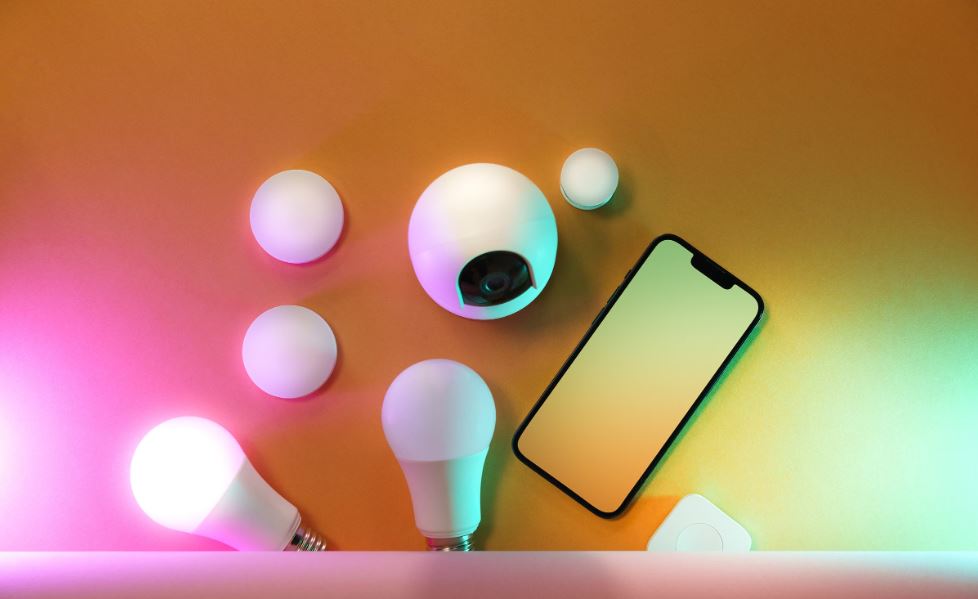
If you’ve got more than three or four smart home devices, you already know the annoying ritual: unlock your phone, find the Google Home app, wait for it to load, tap through to the right room, then finally hit the toggle. It’s not a huge chore, but it’s friction you shouldn’t have to deal with fifty times a day just to turn off a lamp.
The fix has been sitting on your home screen this whole time. Google Home’s Favorites widget lets you control your lights, plugs, locks, and cameras straight from your Android home screen, no app-launch required. It’s been around for a while, but Google just made it noticeably better, and if you set it up years ago and forgot about it, it’s worth a second look.
What changed this month
On September 16, Google pushed an update to the Home app that fixed a couple of things longtime users had been complaining about for months. First, the widget now pauses its background polling whenever your screen is off, locked, or running a screensaver, which was quietly draining battery on phones with a lot of connected devices. It picks right back up and refreshes the moment you unlock your phone, so you’re not sacrificing responsiveness for battery life.
Second, Google fixed the widget’s most irritating visual bug: device tiles for cameras, sensors, and smoke and CO detectors would randomly gray out after you backed out of a device’s control screen, forcing you to reload the whole widget to get them working again. That’s fixed now too, along with more reliable multi-home account switching and steadier camera live-stream performance.
None of that matters much if you’ve never actually set the widget up, though. So let’s do that.
How to add the Favorites widget
- Touch and hold an empty spot on your home screen until the menu pops up, then tap Widgets.
- Scroll to find Google Home in the widget list (or press and hold the Home app icon itself and select Widgets — either path gets you there).
- Touch and hold the Favorites widget and drag it onto your home screen. You can resize it after dropping it, so don’t stress about picking the perfect size up front.
- You’ll be prompted to choose how it populates: tap Favorites to automatically mirror whatever you’ve already starred as a favorite in the Home app, or tap Choose Custom to hand-pick specific devices for this particular widget.
That last option is the one most people skip, and it’s the one that actually makes the widget useful. Don’t just dump every device into one giant widget. Make a small one for your bedroom lamp and fan that sits on your main home screen, and a separate one for garage door and porch lock that you keep on a screen you swipe to on your way out the door. Long-pressing an existing widget and tapping Edit lets you resync with favorites, switch to custom selection, reorder tiles, or point the widget at a different Home account if you manage more than one.
What you can actually control from the widget
Not every device behaves the same way when you tap its tile, and this trips people up. Toggleable devices — lights, smart plugs, switches, and motorized blinds — turn on or off right there on the home screen with a single tap. Everything else, including cameras, locks, and thermostats, opens straight into the full Home app because those need a confirmation step or a live view. That’s a safety choice, not a bug, but it’s good to know going in so you’re not tapping your smart lock tile expecting it to just… unlock.
| Device type | Tap behavior on widget | Examples |
|---|---|---|
| Toggleable | Controls instantly, no app launch | Smart bulbs, plugs, switches, blinds |
| Needs confirmation | Opens the full Home app | Smart locks, garage doors |
| Needs a live view | Opens the full Home app | Cameras, doorbells |
| Set-point control | Opens the full Home app | Thermostats |
One more thing worth knowing: the widget refreshes automatically on roughly a 30-minute cycle in the background, which is fine for most tiles but can leave a light’s on/off state looking stale if someone flips it from a physical switch. A dedicated manual refresh button was added to the widget a few months back specifically to solve this — tap it if a tile looks wrong before assuming something’s broken.
My honest take
I’ve had a Favorites widget on my main home screen for over a year now, split into a “downstairs” and “bedroom” pair, and it’s genuinely changed how often I bother adjusting lights instead of just leaving them on out of laziness. The battery fix this month is the part that finally makes it worth recommending without a caveat — before, heavy smart home users with a lot of cameras noticed a real dent in screen-off battery drain, and that’s exactly the kind of tradeoff that makes people give up on a feature. Now there isn’t one. If you tried the widget early on and abandoned it, this is a good week to give it another shot.
Sources: 9to5Google, Google Nest Help, Android Police. Photo by Jakub Zerdzicki on Pexels.

Harish
I am the founder of androidcaptain.com, a tech graduate and writes which covers android, smartphones, apps, software, and the rapidly evolving world of artificial intelligence. I focus on breaking down new technologies, exploring useful features, and helping readers understand how their devices and software can work better for them.